
Question
How can I set custom message for Welcome message, Password Expired, etc.?
Reasoning
You can custom messages for AcctDisabledMsg, AcctExpiredMsg, BannedFileTypeMsg, BannedMsg, BannerMsg, ExceededQuotaMsg, FtpsDisabledMsg, FtpsRequiredMsg, KickedMsg, LockoutEmailMsg, LockoutSmsMsg, MaxConnectsIPMsg, MaxConnectsMsg, PassExpiredMsg, QuitMsg, and WelcomeMsg
Answer
Follow the below steps-by-steps procedure.
Steps
- Login to your Titan SFTP Server.
- Navigate to your Server > Connections.
- On the Tab Column, look for Messages and click Messages.
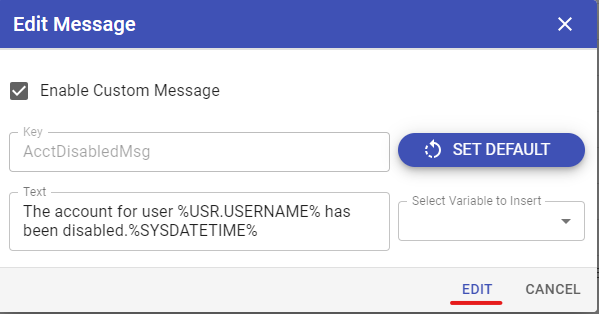
Choose which message you wanted to edit, then click the pencil icon beside it.
Make sure you check the Enable Custom Message
Once checked, you may edit the Text and enter your desired message.
You can also use variable, click the dropdown for “Select Variable to Insert”.
Then you can choose from the list of variables to insert
Once done, click “Edit” to save the changes.
How to check the custom message you have defined under Connection > Messages.
Test Case:
- The test case we are using as example is AcctDisabledMsg. You have to disable the user, To disable the user, go to Users > Edit User & Assigned Groups > Click Next > then Next again > uncheck the Account Enabled > click b
- Login to your SFTP or your Titan Server with the disabled user. Then the message will be on the logs.
- Check the logs, under Logging > Log Management > Download the logfile.log or the most recent log, and you will see below
- This is the Custom message under Connections > Messages